Proctorio Settings for Replacing LockDown Browser
Do this FIRST
Before doing anything, you need to have the Proctorio browser extension installed and activated in your Chrome browser.
- Open getproctorio.com in Chrome
- Follow the instructions to install the plugin
Users need this extension for both configuring Proctorio as well as taking the exam.
Enable Proctorio in Course Navigation
Review this article to see how to activate tools and rearrange your course navigation.
Proctorio Settings for Replacing LockDown Browser
Proctorio can be used for full asynchronous test proctorio as well as simply locking down a browser.
IMPORTANT:
- The Recording Options are resource intensive for the test taker. Avoid using any of those settings for simply replacing LockDown Browser.
- Make sure you have done all of the steps above before you continue. Editing a Proctorio quiz without the browser plugin will break the exam.*
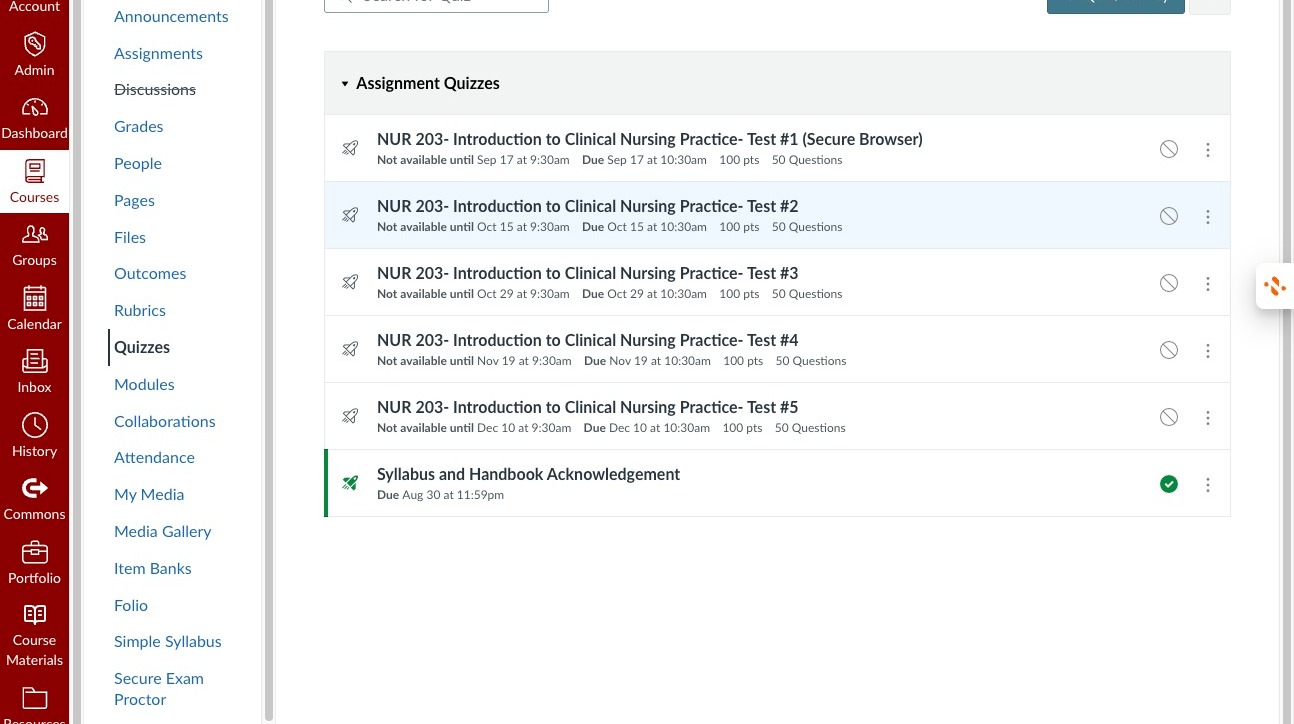
1. From the Quizzes page in your course.
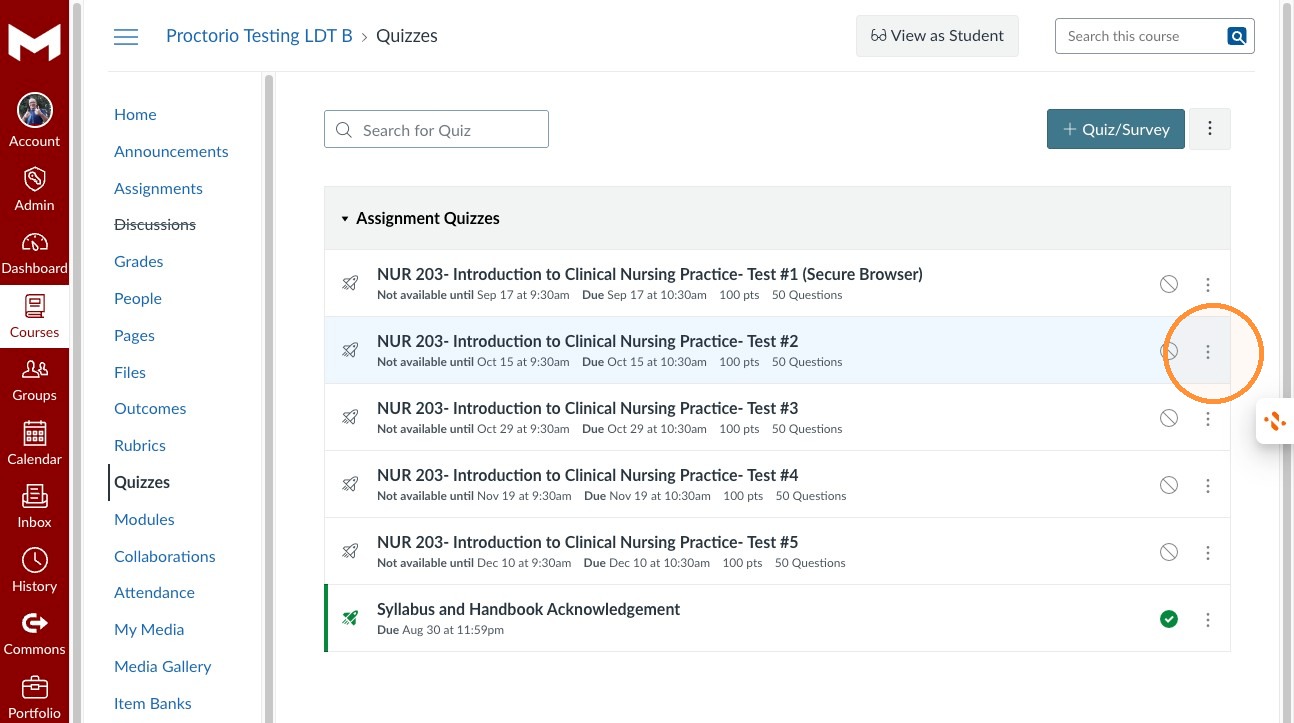
2. Open the quiz’s options menu.
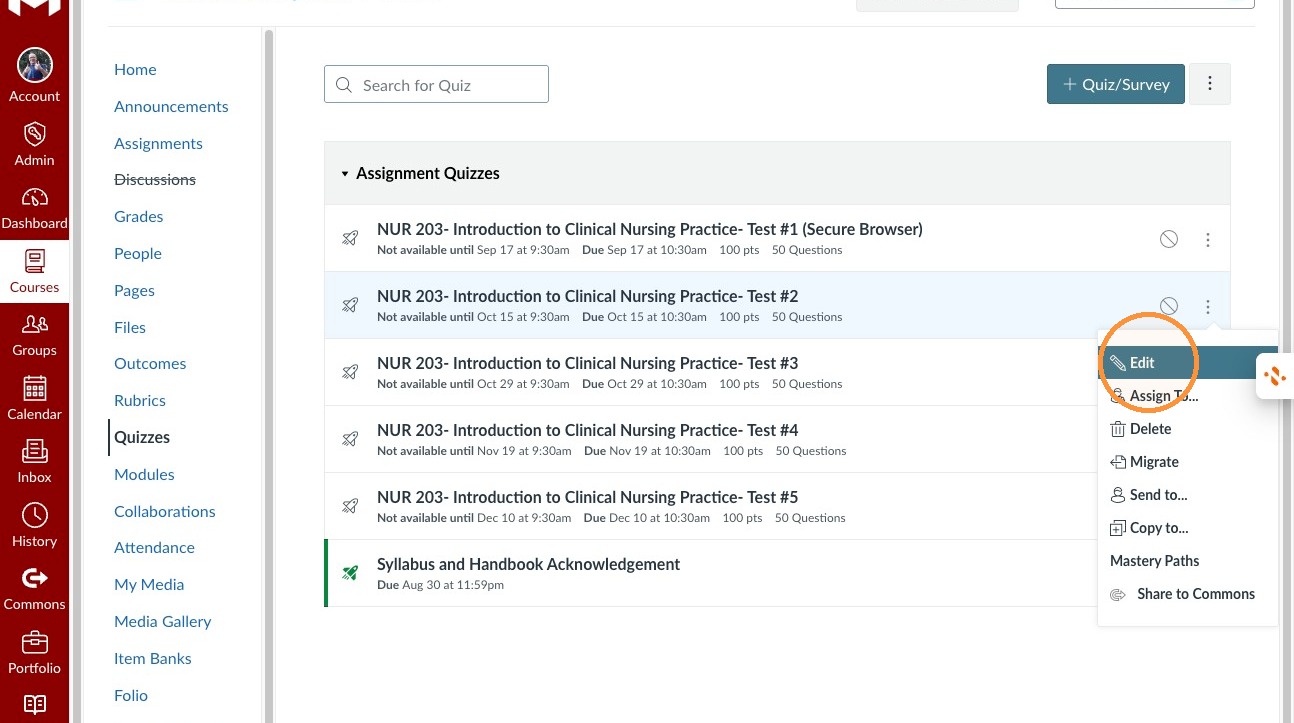
3. Click Edit for the selected quiz.
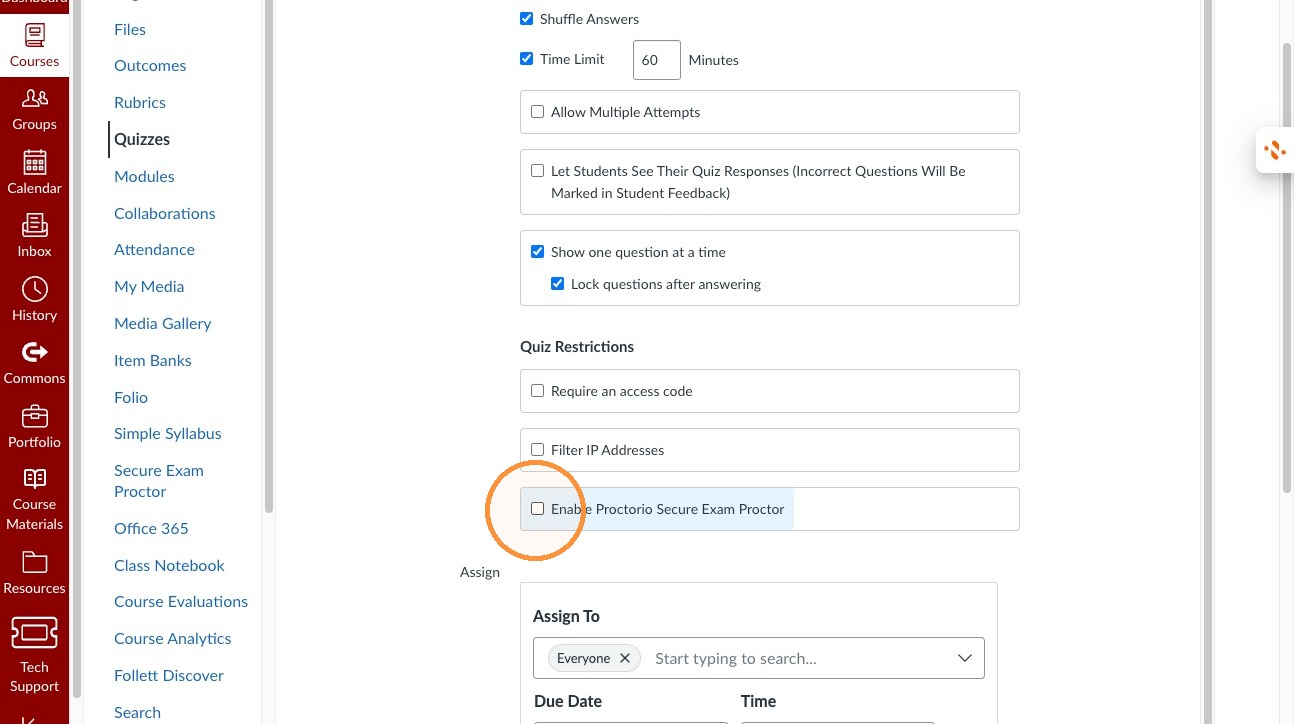
4. Click the "Enable Proctorio Secure Exam Proctor" field.
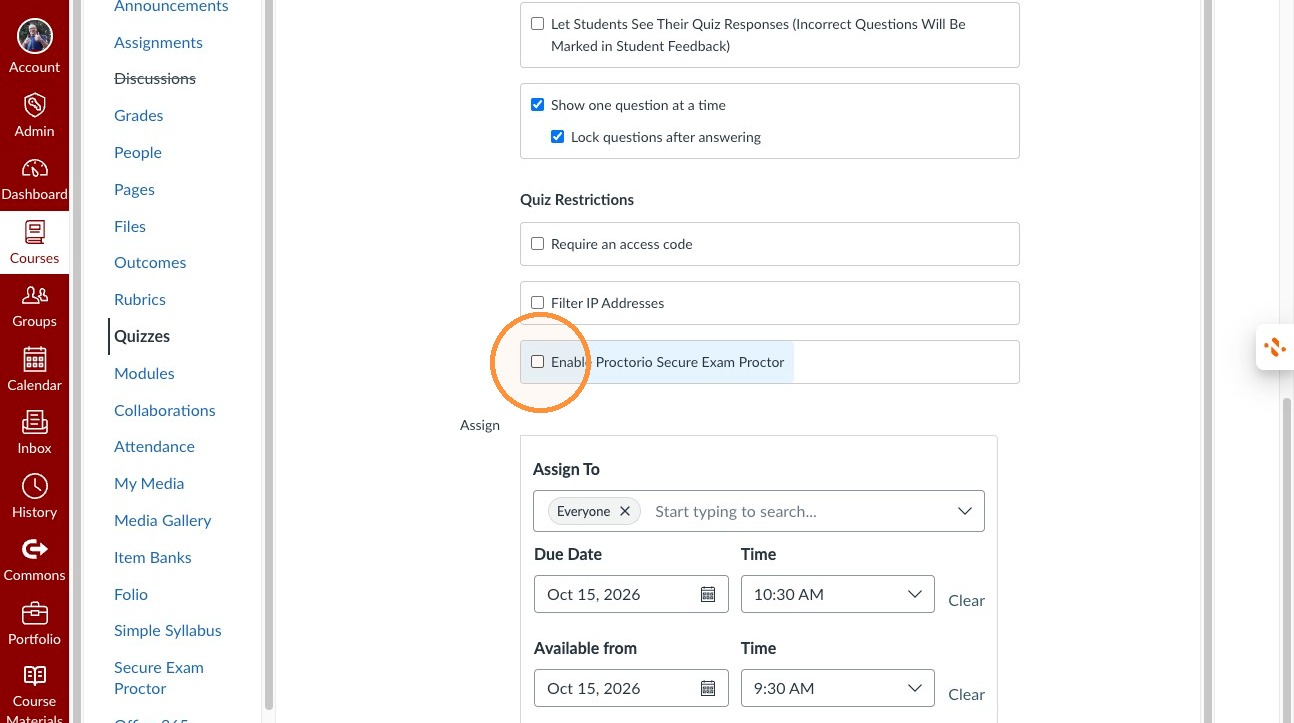
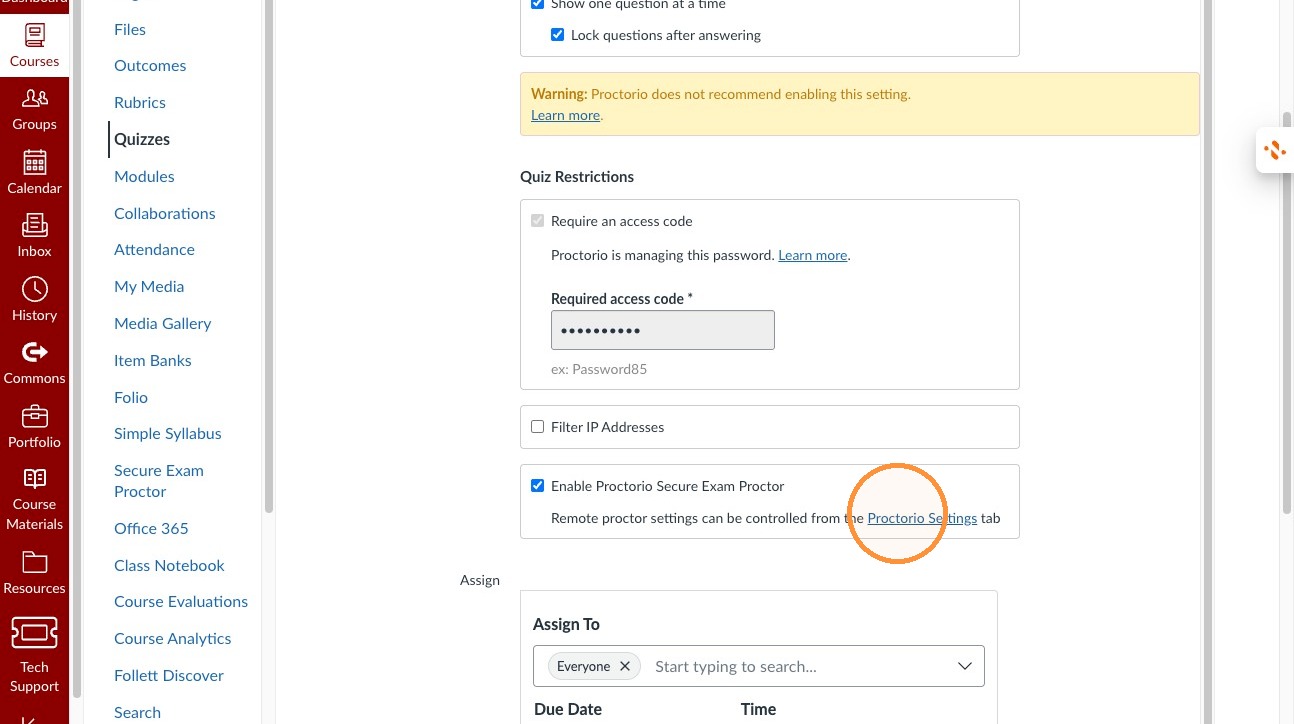
5. Open Proctorio Settings.
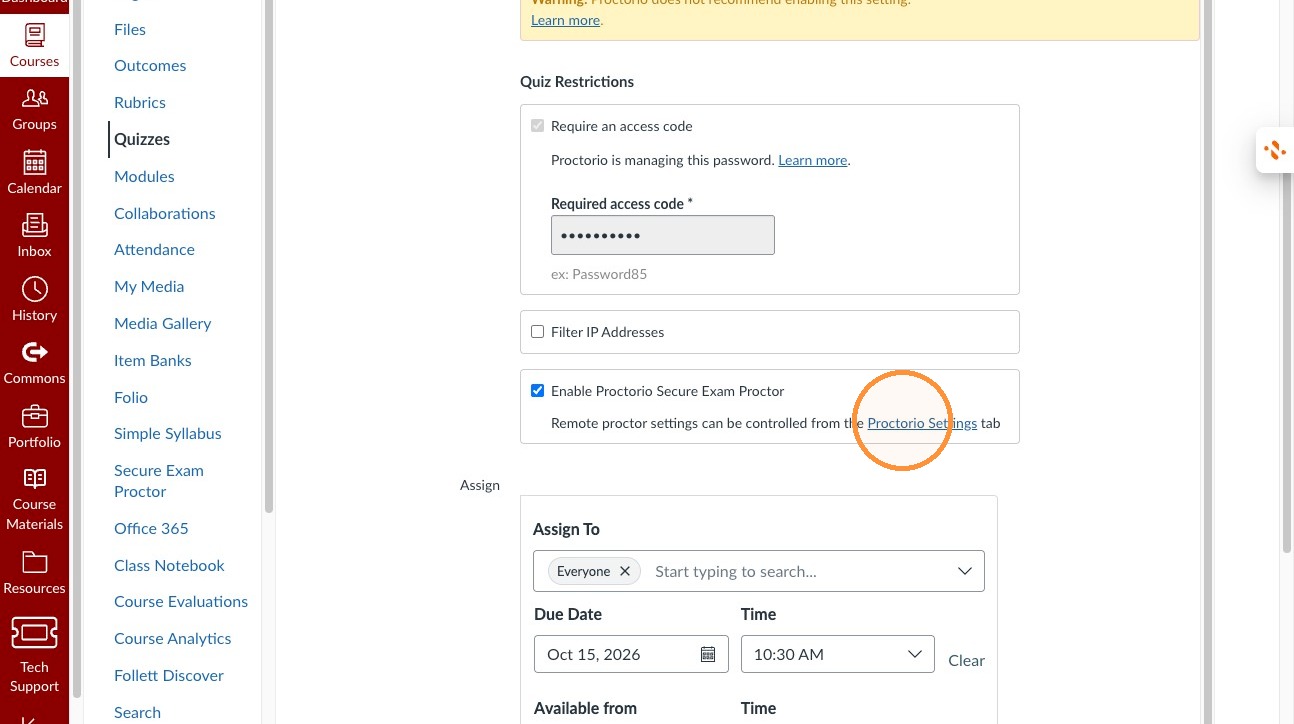
6. Make sure none of the Recording Options are enabled
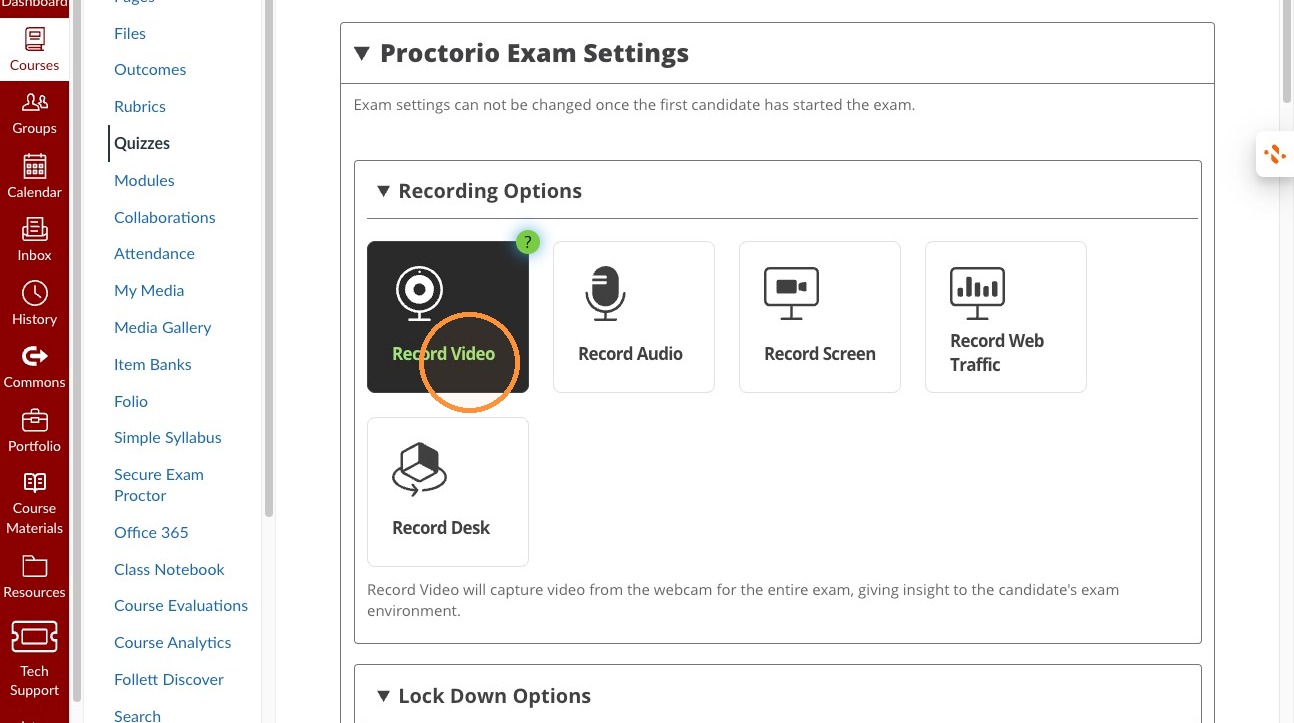
7. Click "Only One Screen"
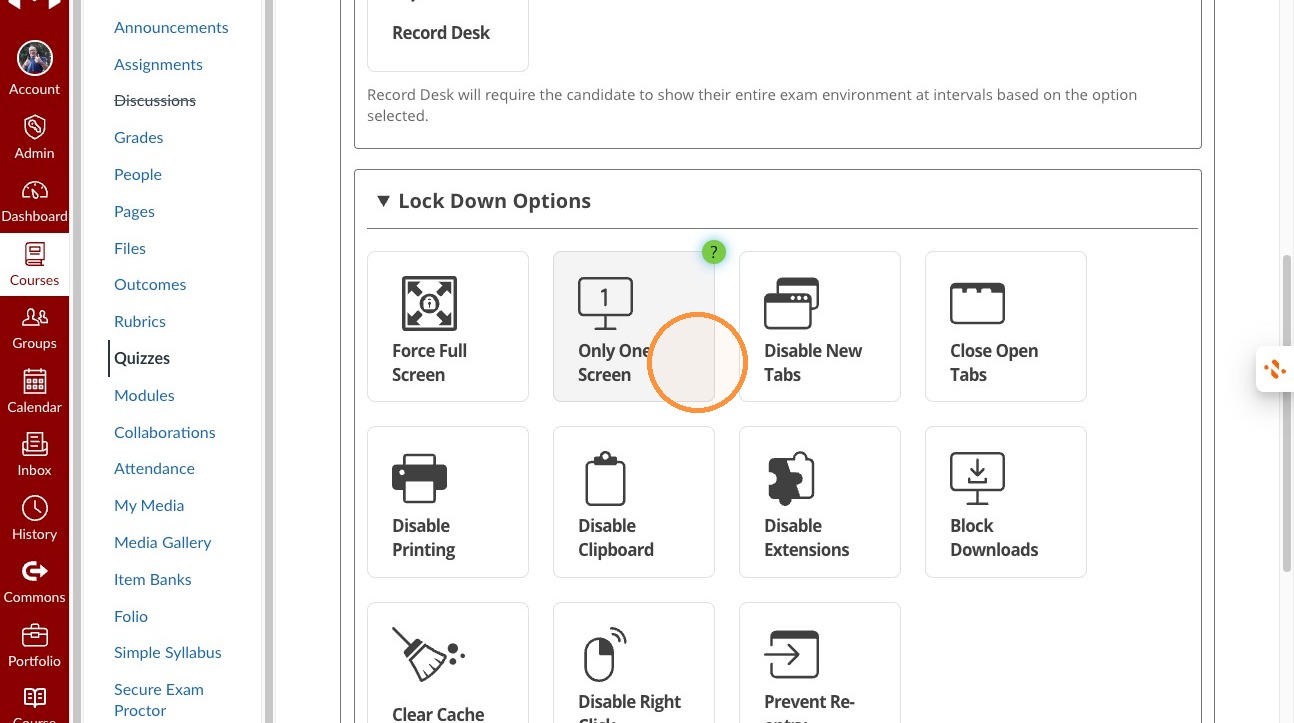
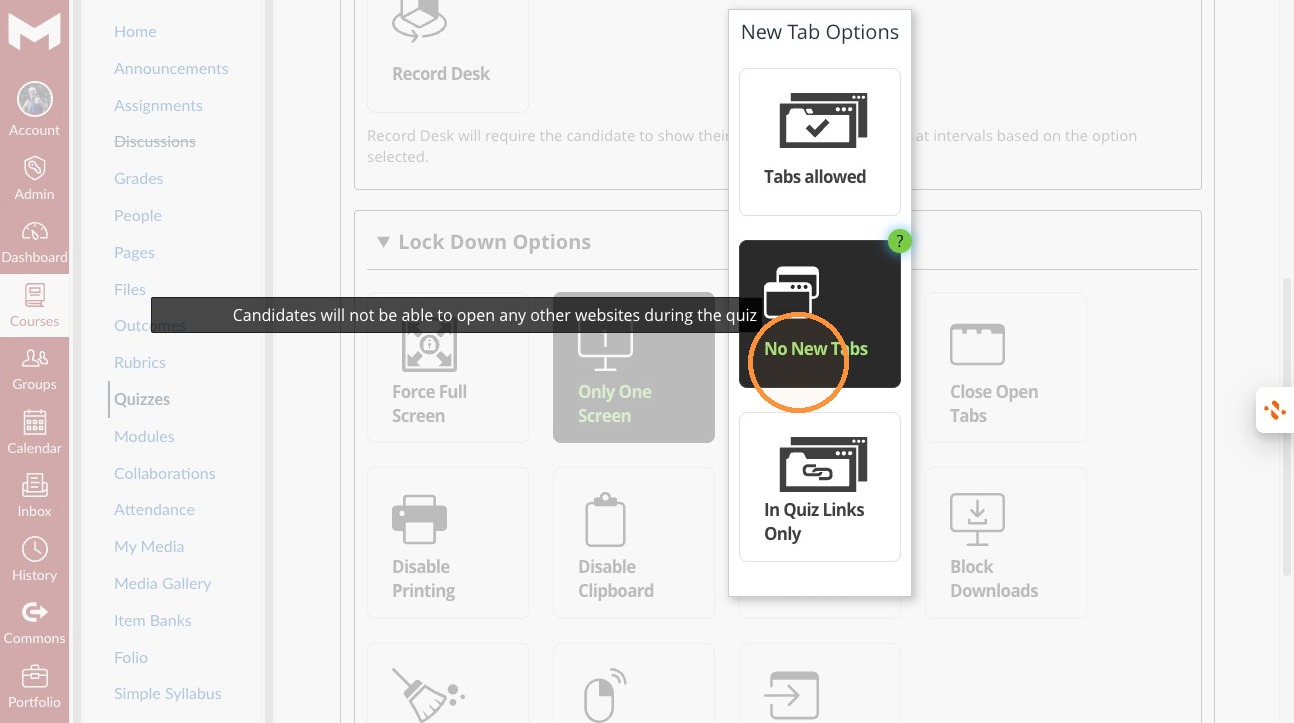
8. Select Disable New Tabs.
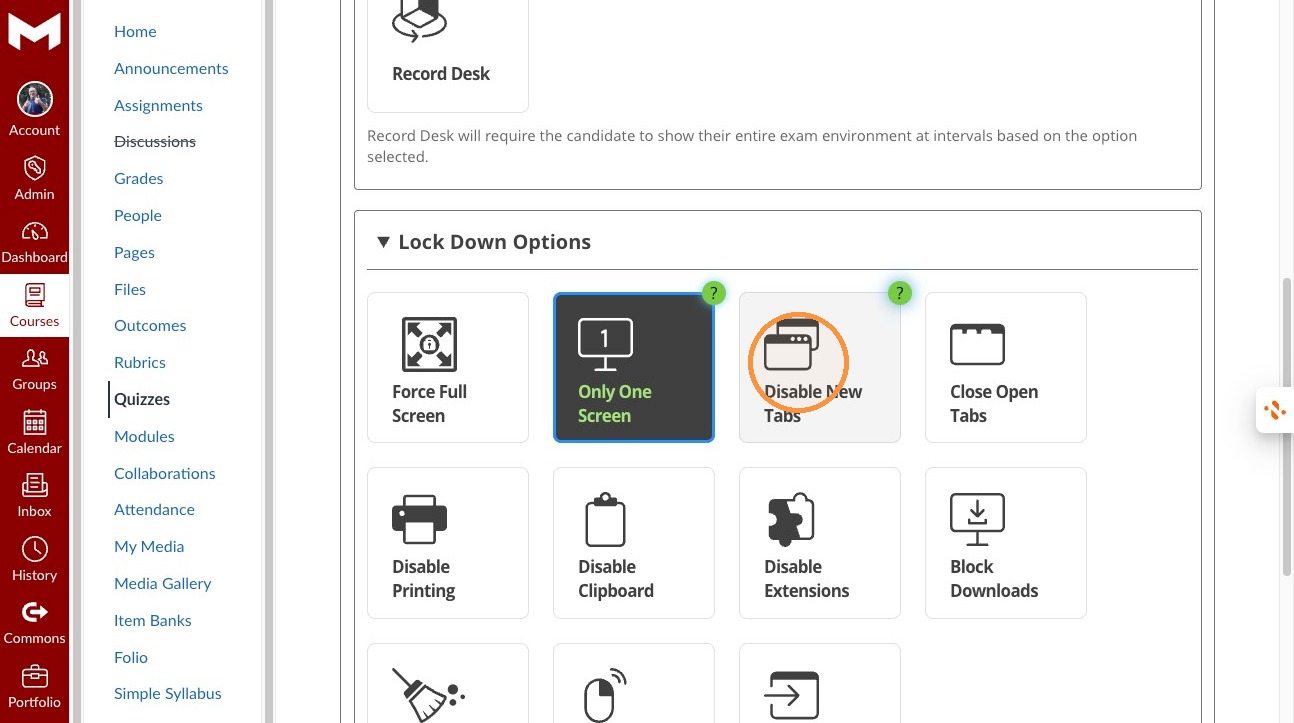
9. Click "No New Tabs"
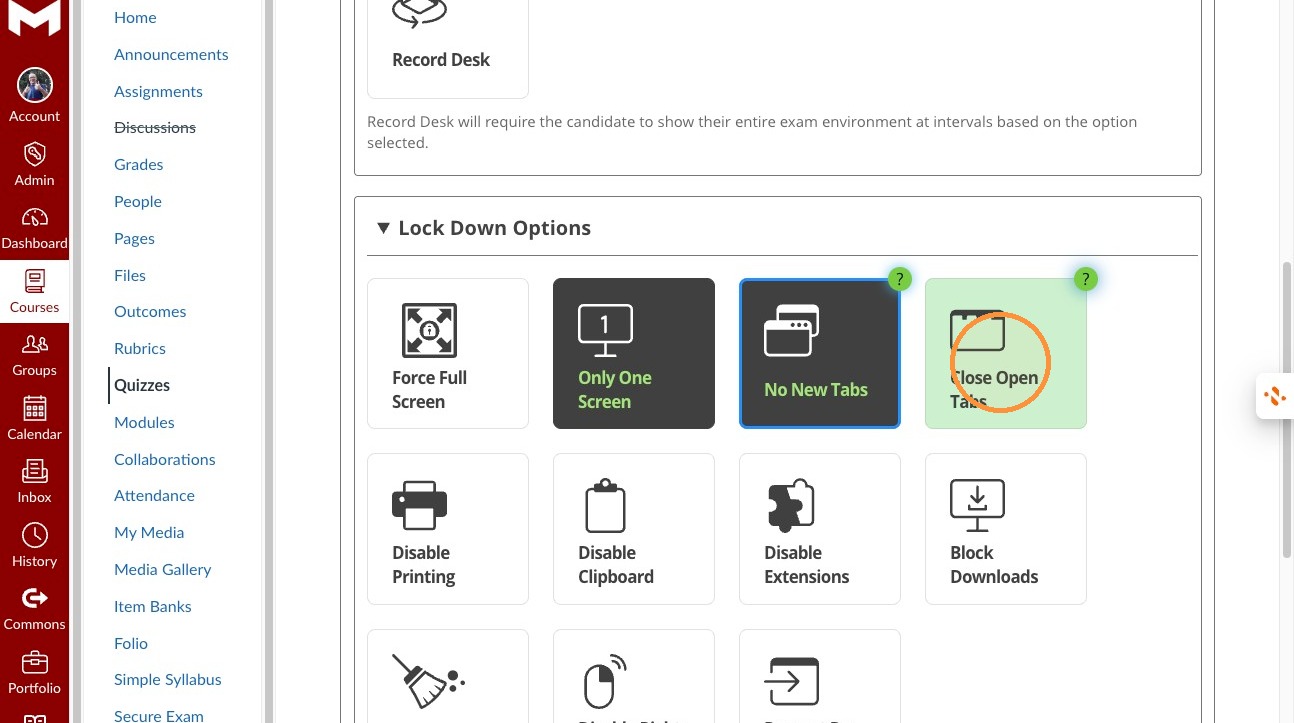
10. Select Close Open Tabs.
11. Select Disable Printing.
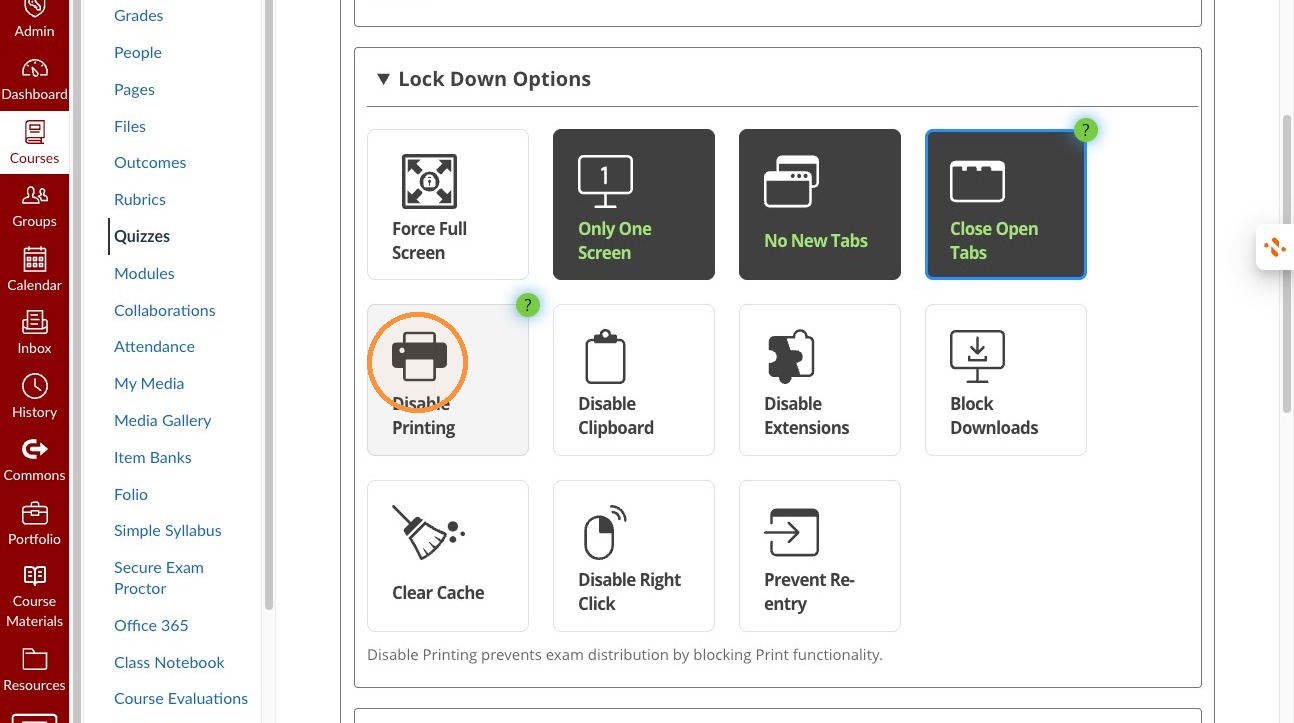
12. Select Disable Clipboard.
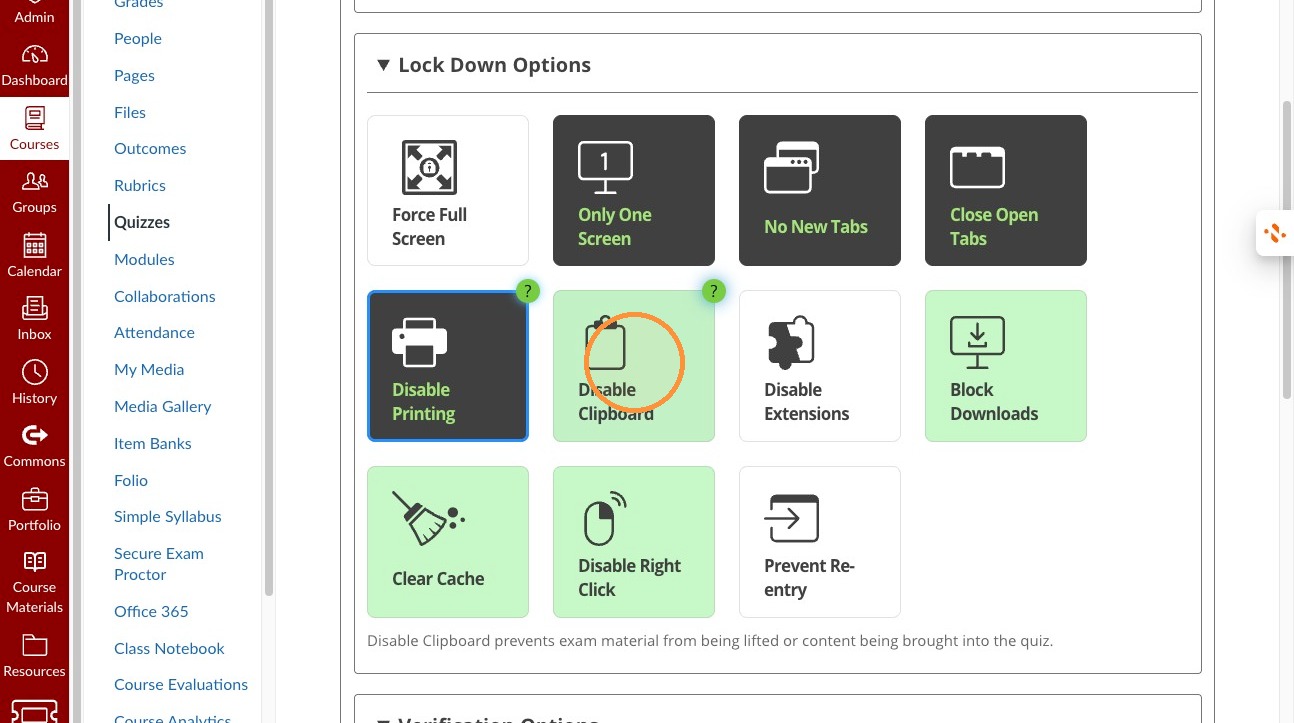
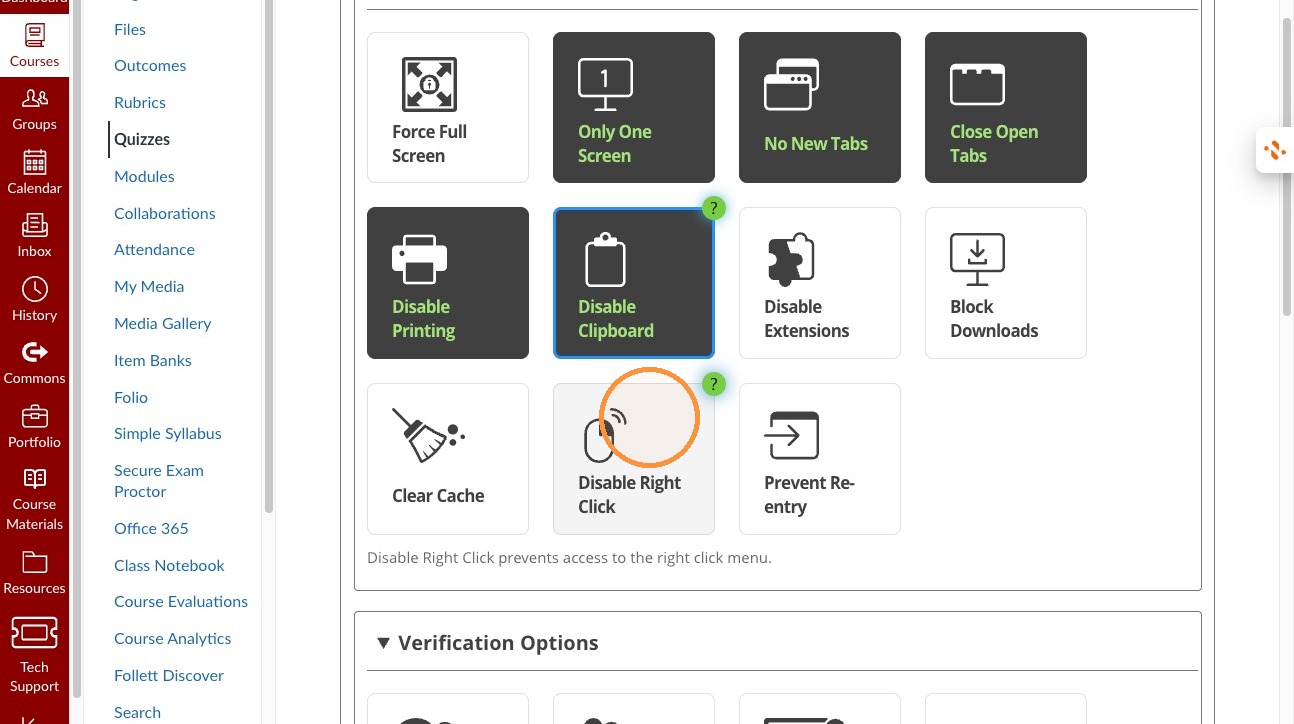
13. Select Disable Right Click.
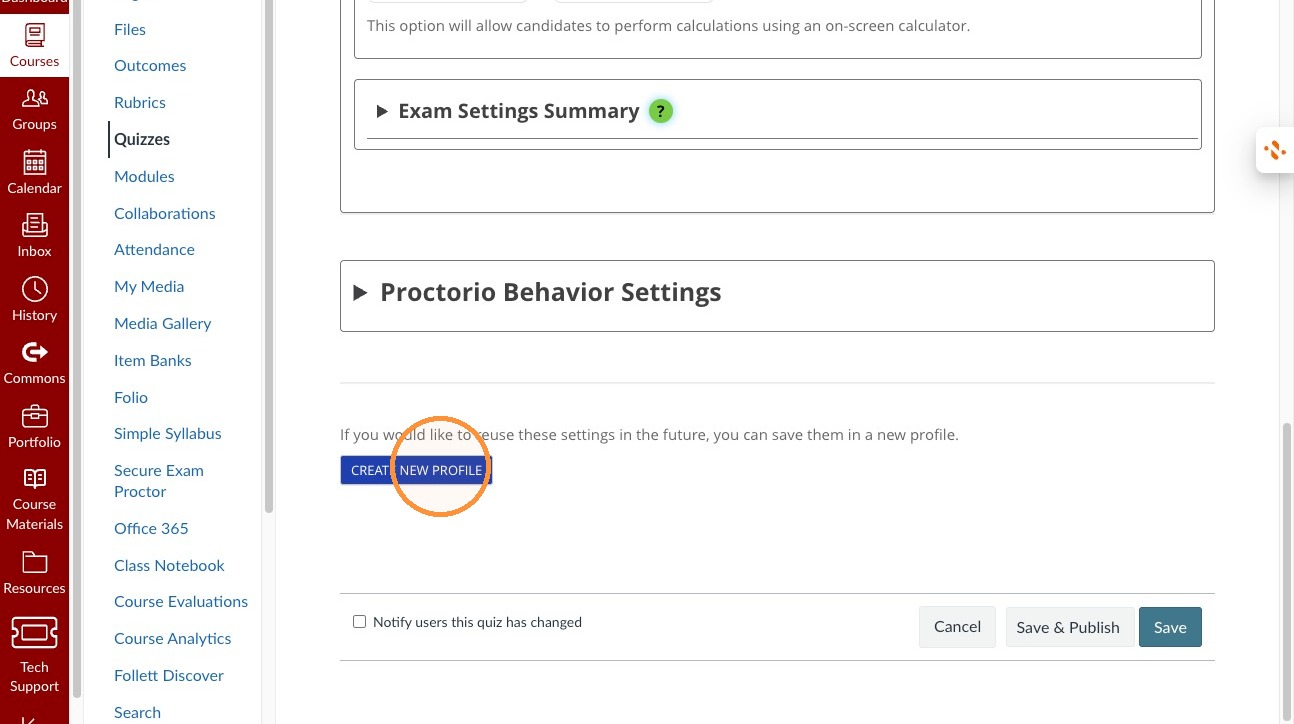
14. Click Create New Profile.
Create a profile of these settings to re-use them on other quizzes. These profiles will be available in all of the quizzes you where you use Proctorio, even other courses.
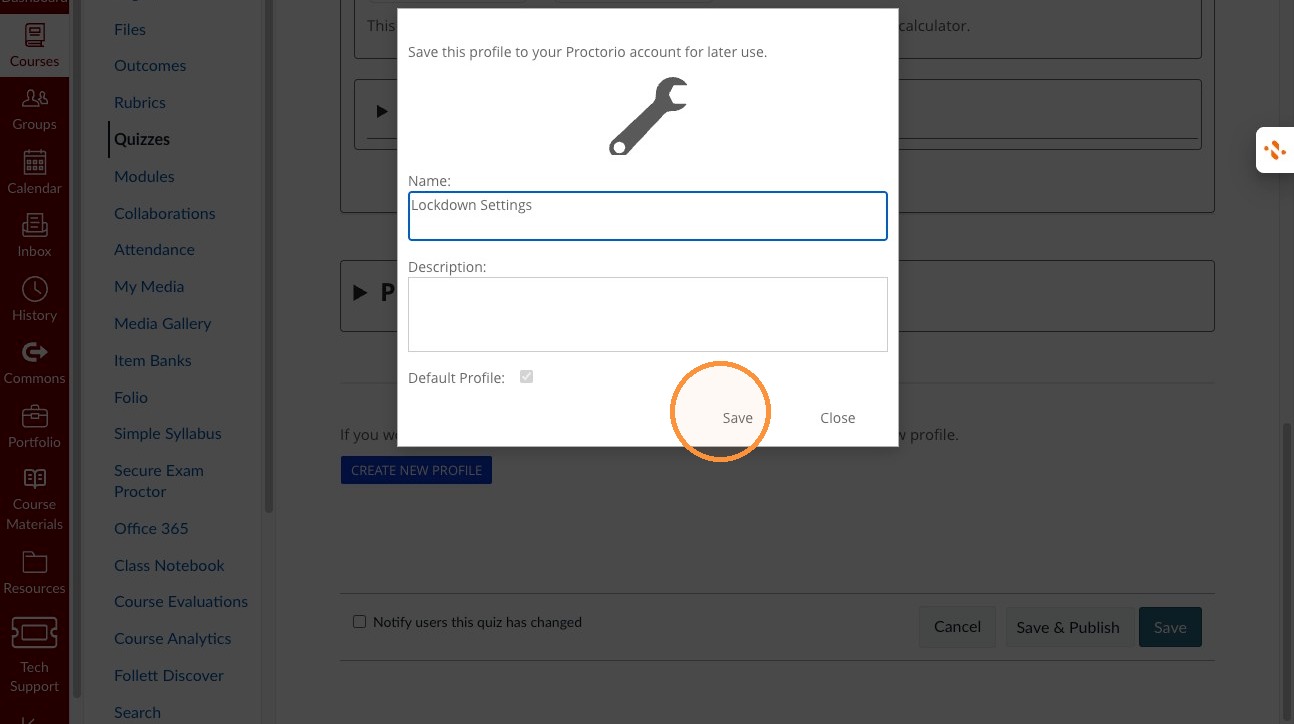
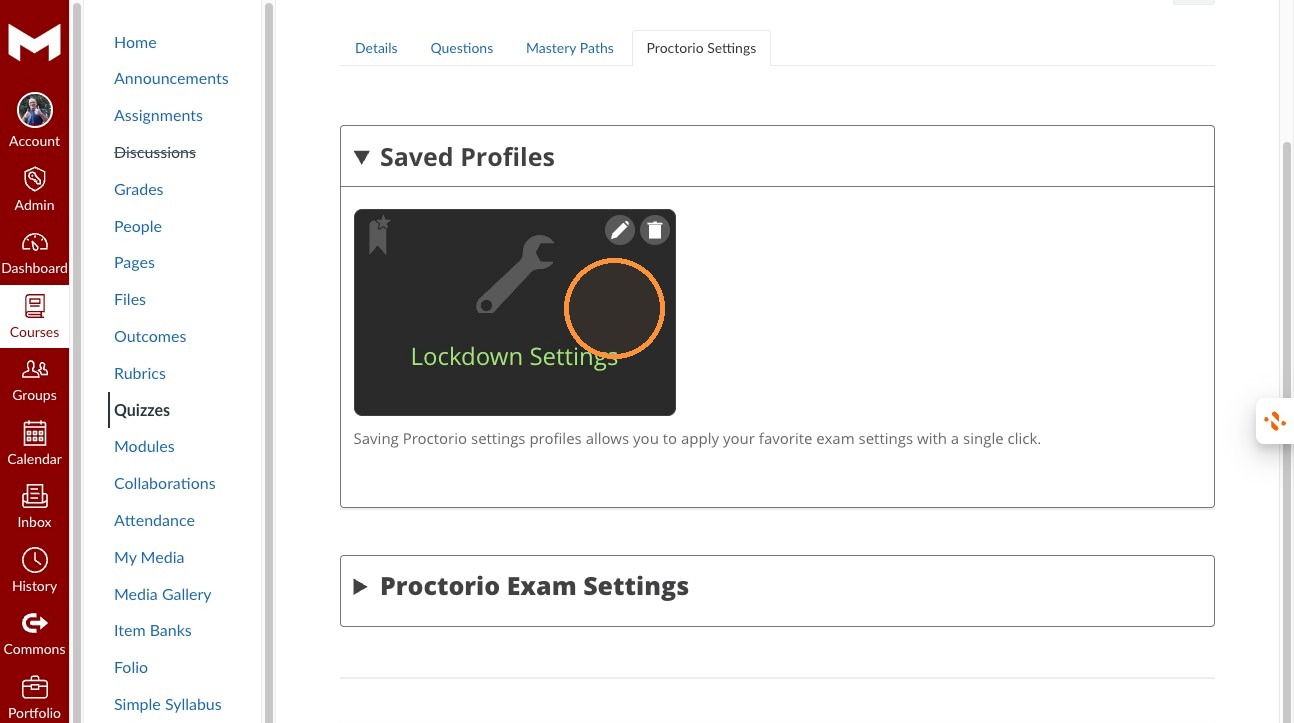
16. Enter Lockdown Settings as the profile name.
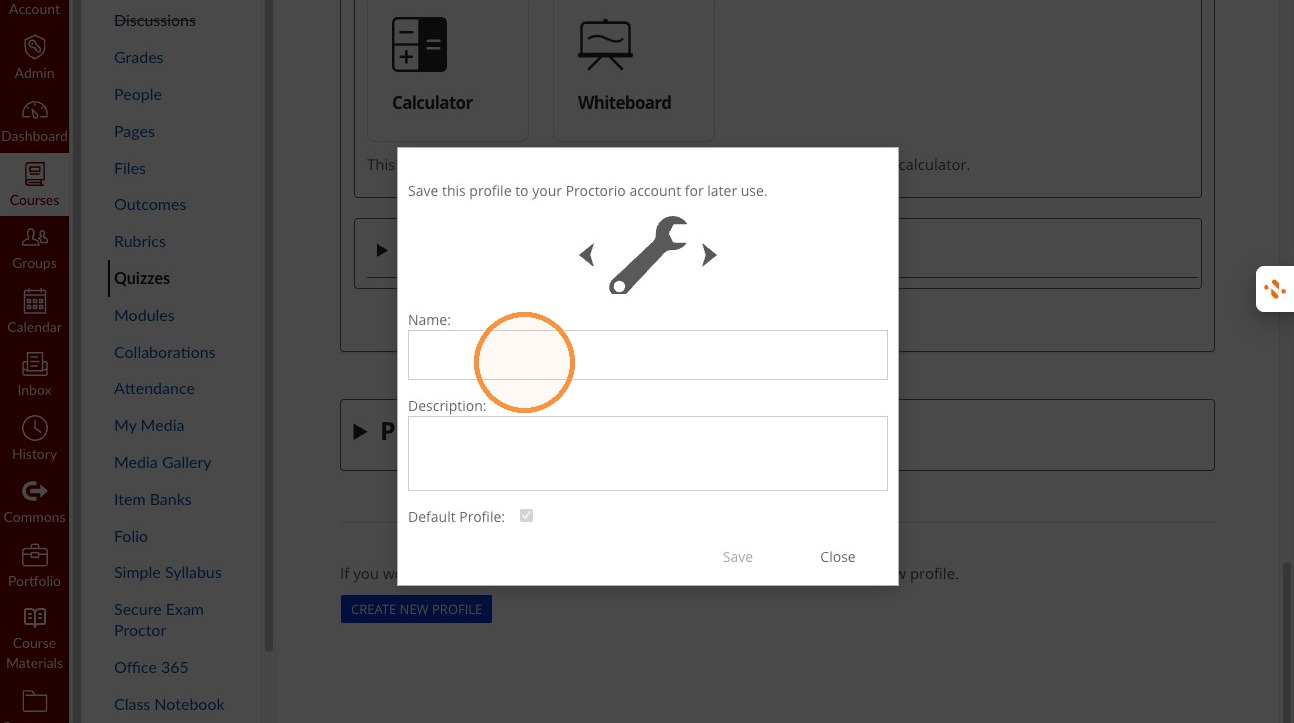
17. Save the Proctorio profile.
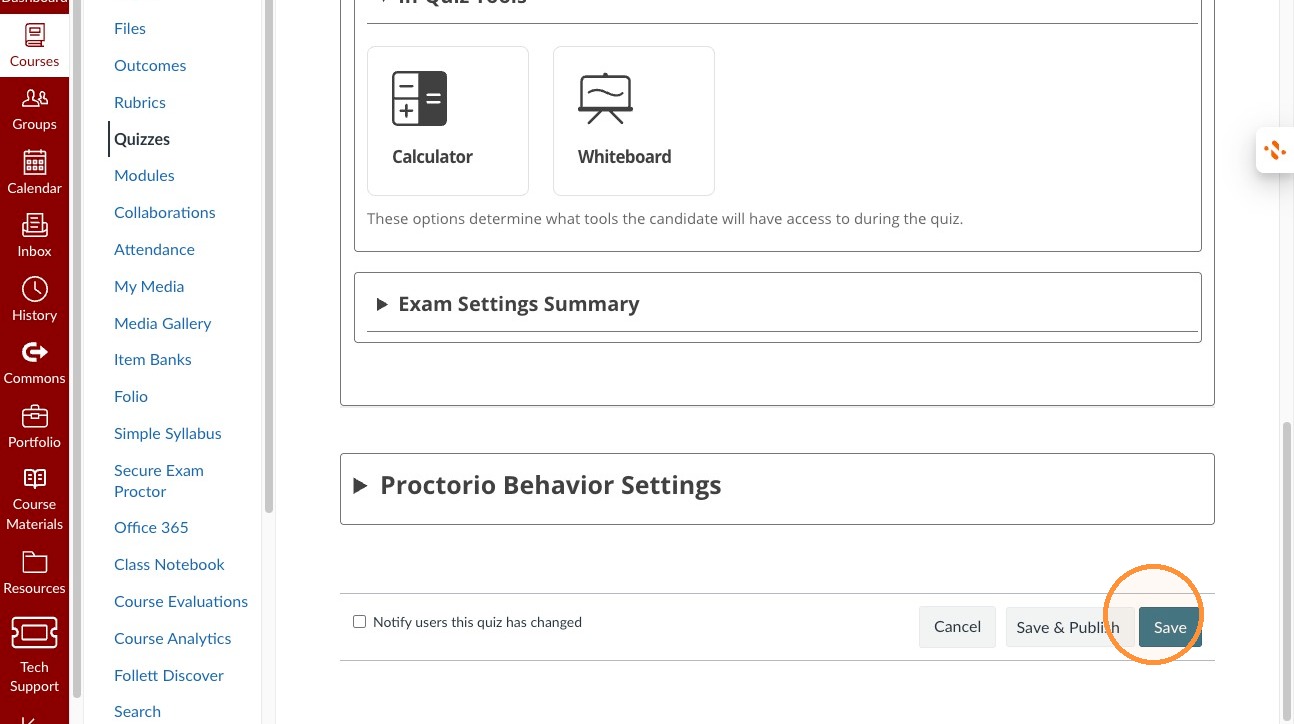
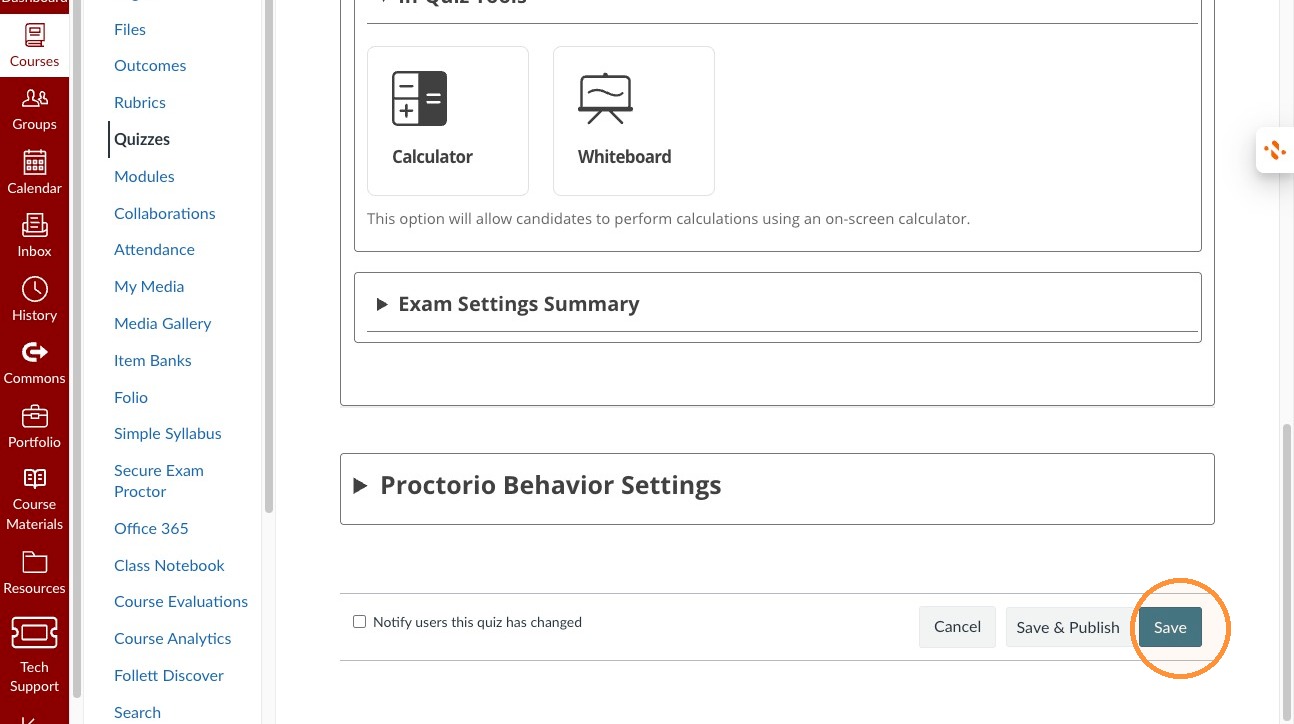
18. Save the quiz settings.
Use the profile to set up your other quizzes
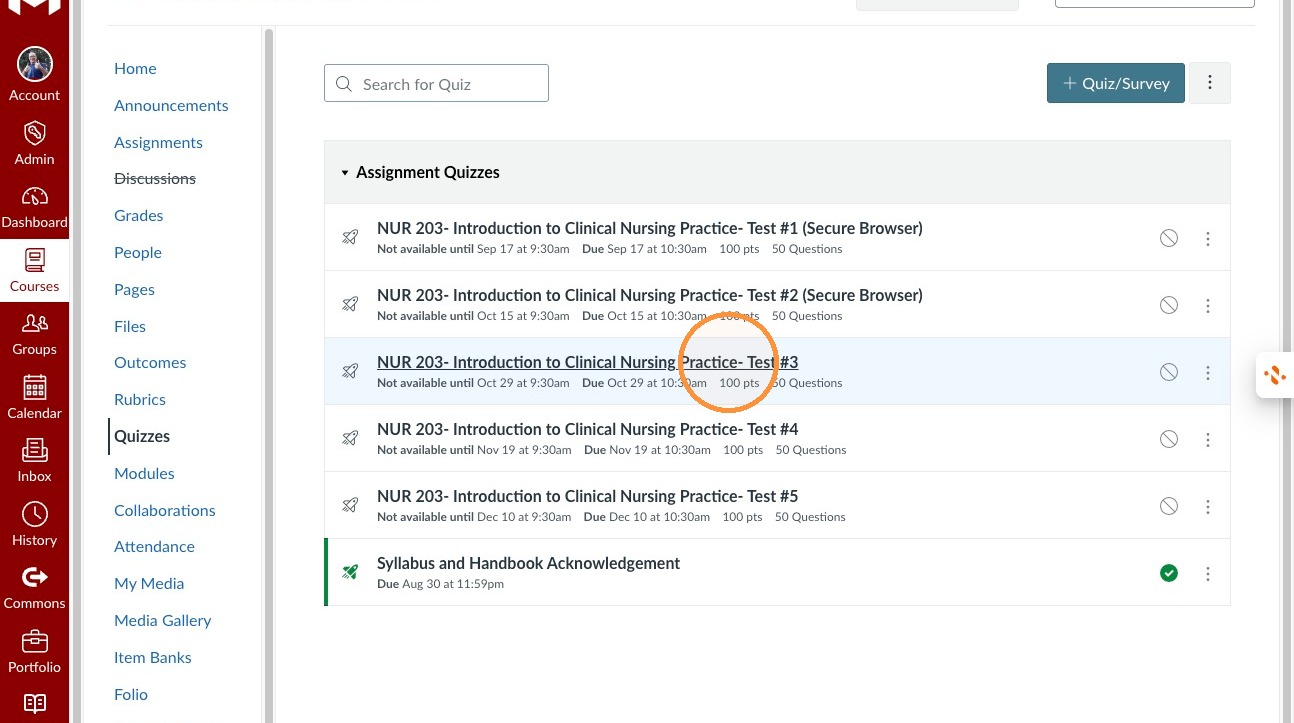
1. Select a test
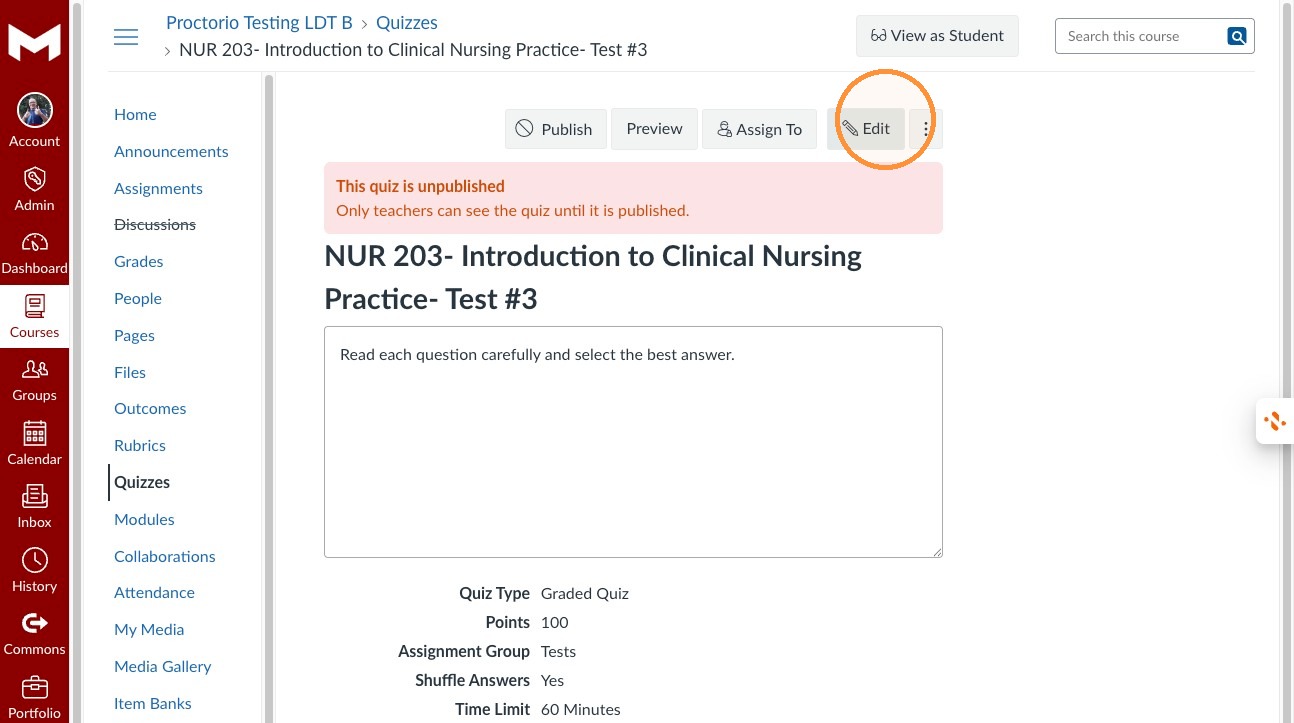
2. Click Edit
3. Enable Proctorio Secure Exam Proctor.
4. Open Proctorio Settings.
5. Select the Lockdown Settings profile.
6. Expand Proctorio Exam Settings.
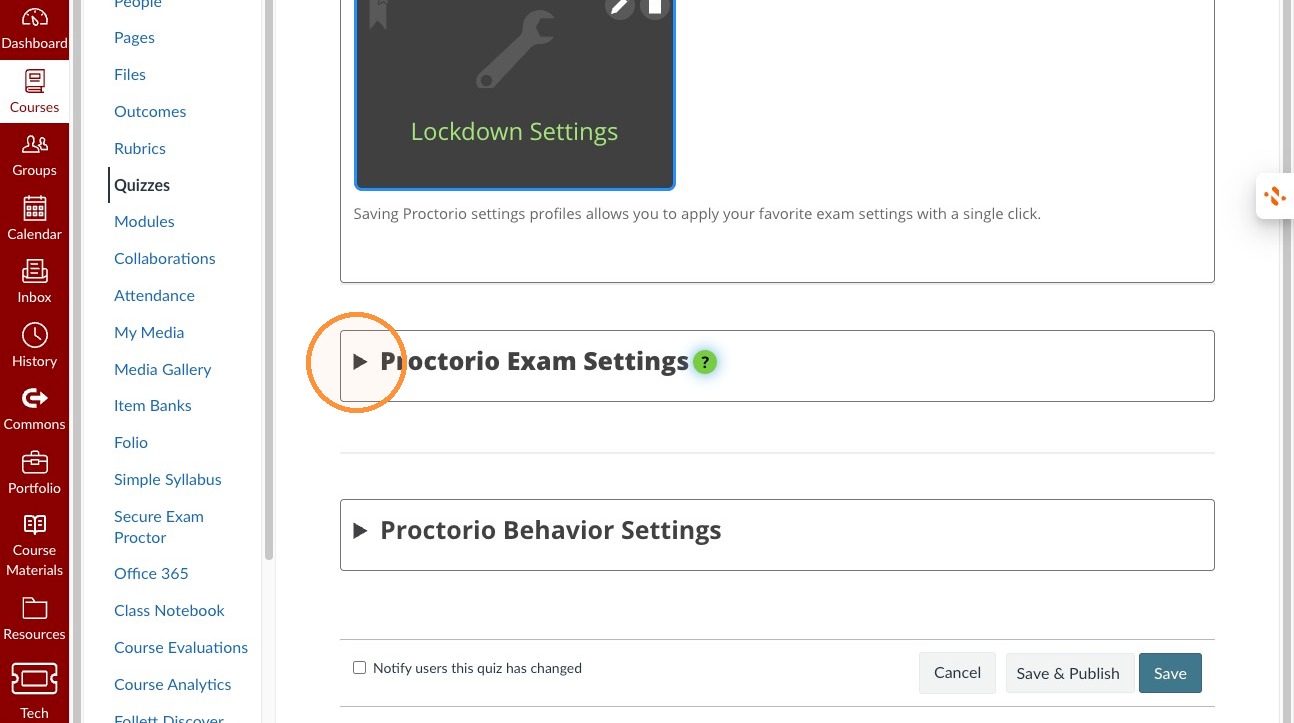
7. Save the quiz settings.