ASK Maryville
Create a help ticket
Sign in

Editing the Course Navigation

TL;DR
You can hide or remove tools that you aren't using in your Canvas course. If you don't see a link or tool that you think you should, check and make sure it isn't hidden.

Learn how to quickly add Zoom to your course navigation menu in Canvas. This guide will help you manage your course settings so students can easily access virtual meeting tools.

1. Go to your course.

Course Settings

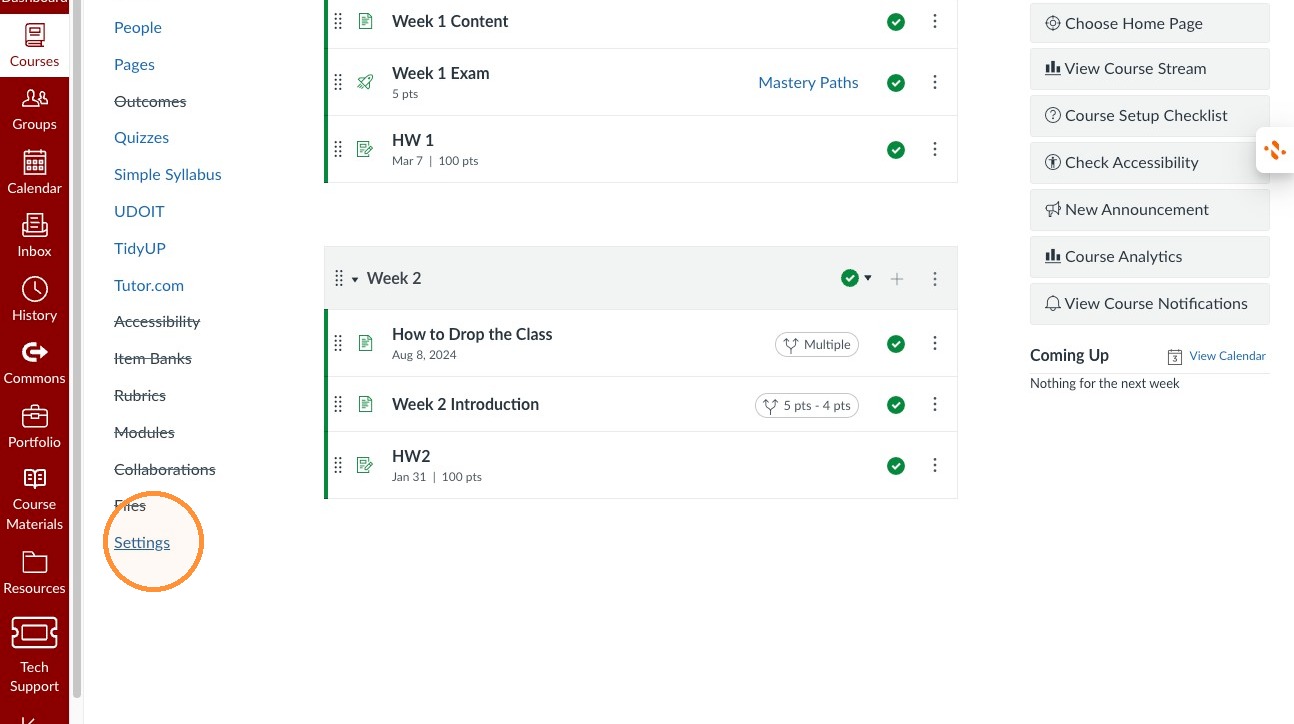
2. Click Settings
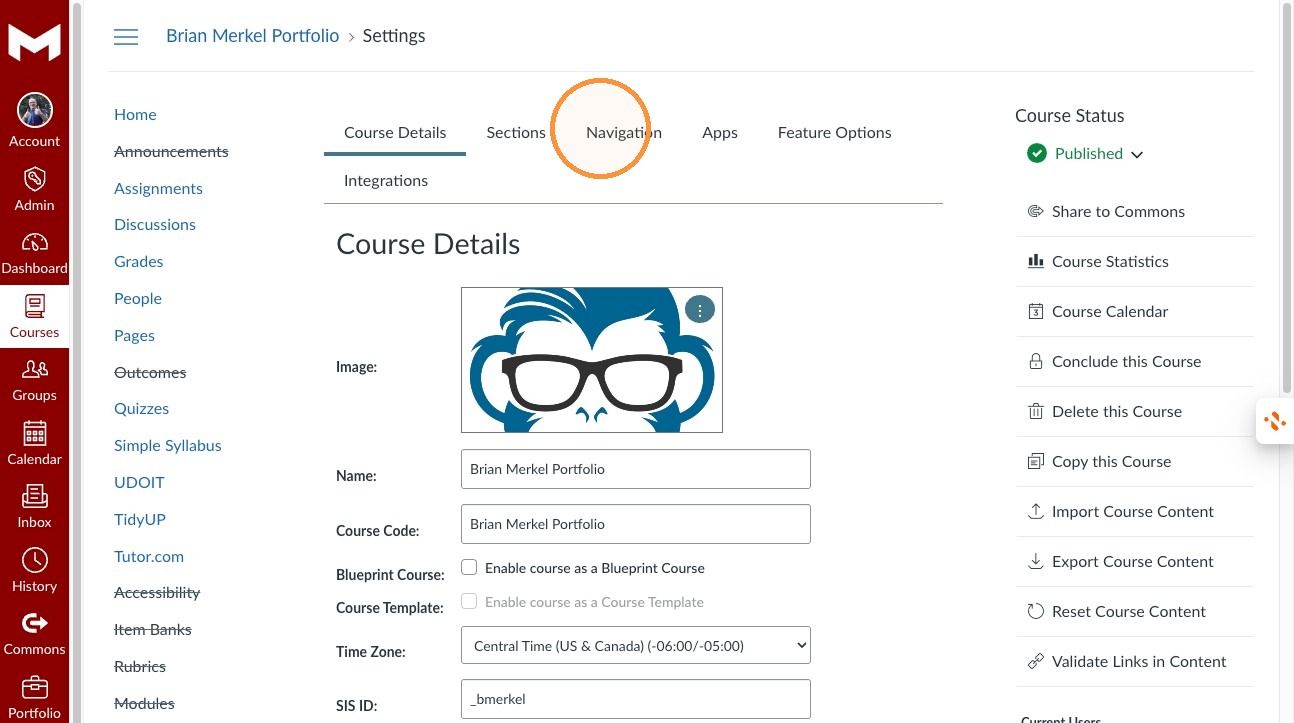
3. Click Navigation
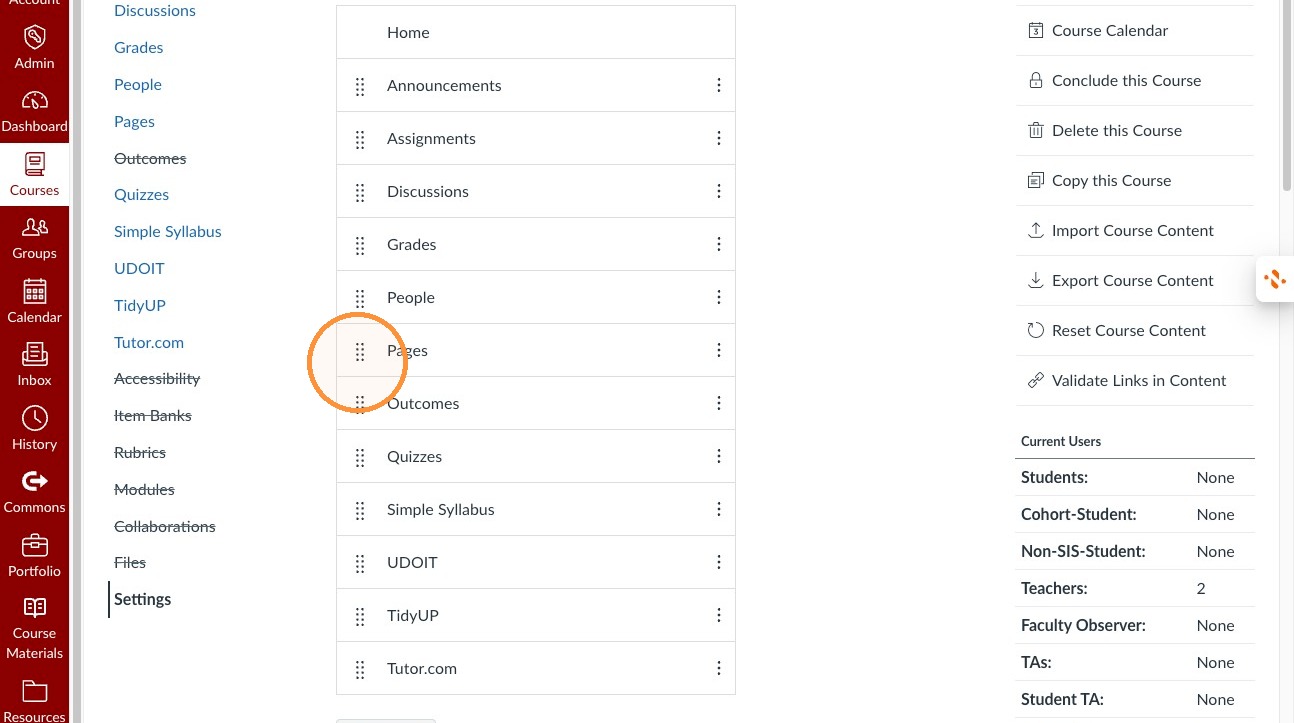
Reordering Course Navigation

4. Move Pages above Discussions
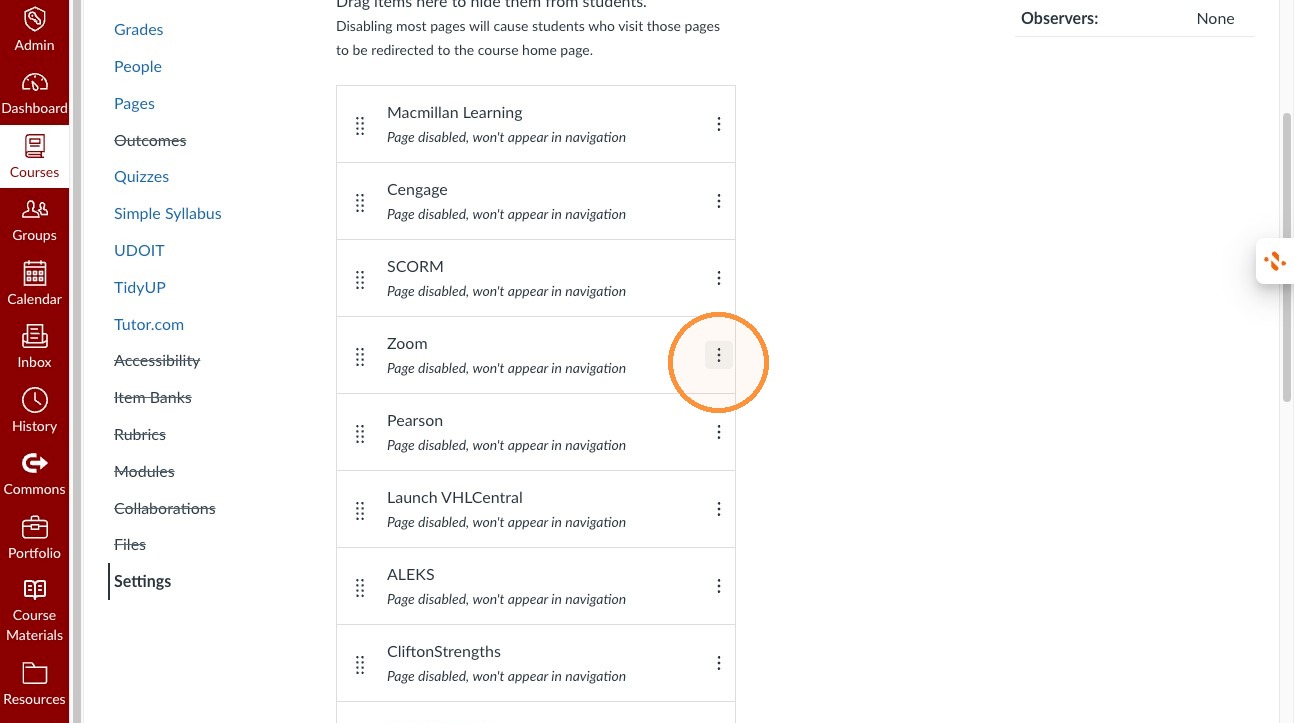
Enable a Tool

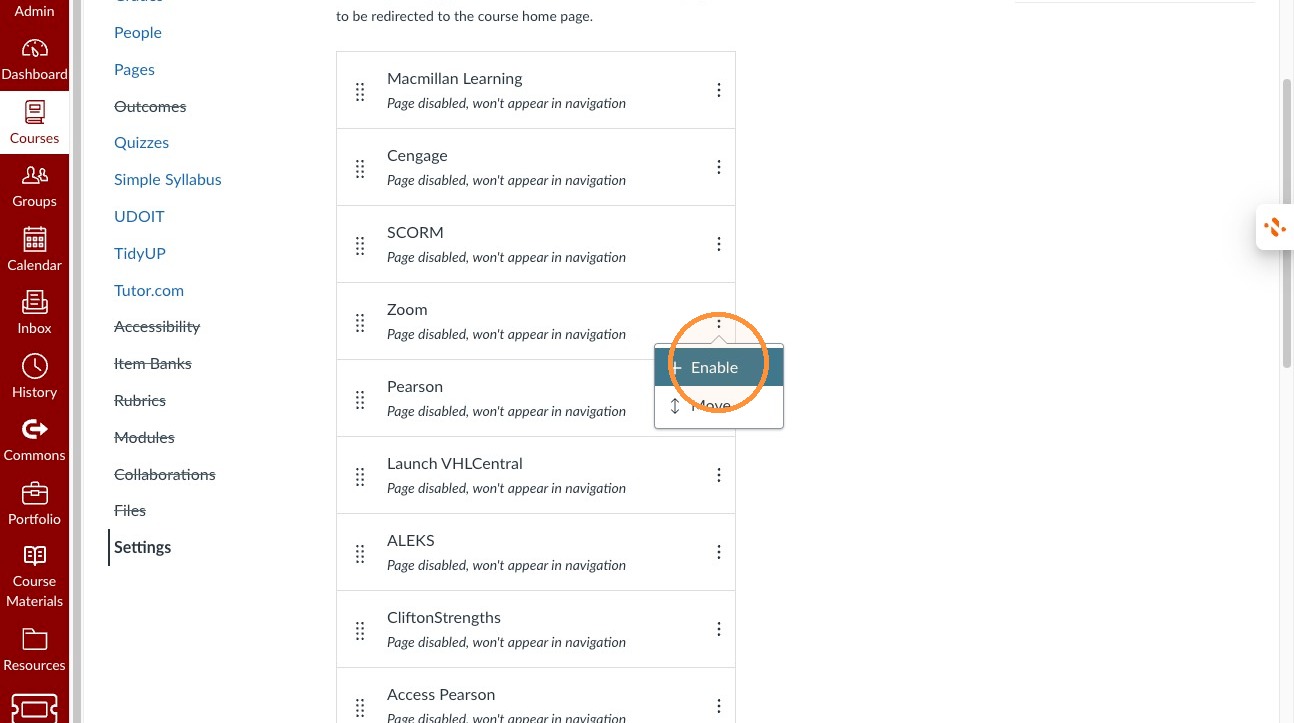
5. Open the options menu for Zoom
6. Click Enable for Zoom
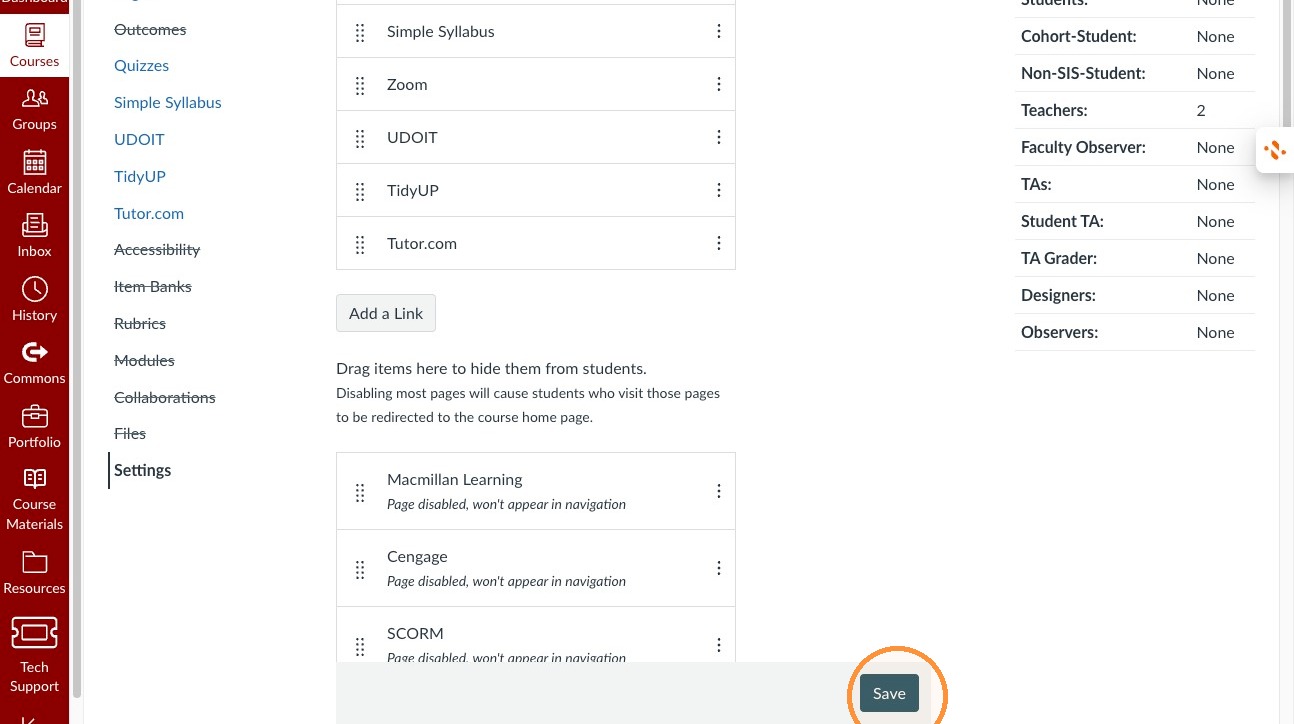
7. Click Save
Maryville University | 2025

Ask Maryville
How can we help you?
Login to Submit a Ticket

Logging in helps us gather more information, reduces the back and forth, and saves time resolving your issue.

Can't Login?
We can help you get back into your account
Email or Maryville ID Enter your Maryville email address or your Maryville ID number.

If you can't provide either your Maryville email or ID number, please call the Help Desk at (314) 325-7859.