Taking a Proctorio Quiz on a Mobile Device
What You'll Need
Proctorio's mobile app works only on devices that meet these minimum requirements:
- iOS 13.4 or newer, or Android 7 or newer
- Google Chrome installed as your mobile browser. Make sure it is up to date. The mobile launch flow requires Chrome and will not work in Safari, Firefox, or other browsers.
- A stable Wi-Fi or cellular connection
Open your quiz link in Google Chrome on your mobile device. If the exam allows mobile testing, you'll see a Use Mobile box with a Launch Mobile App button. Tap it: the first time, this installs the app (from Google Play on Android or the App Store on iOS) before opening it; after that, it launches straight into the app.
The app is called MobileExam, published by Proctorio. If you'd rather install it ahead of time instead of waiting for the Launch Mobile App button, get it from the App Store (iOS) or Google Play (Android). See Proctorio's Mobile App support article for the latest details.
Before You Start
- Install the Proctorio app and open it once to grant camera and microphone permission when prompted.
- Log in to Canvas through Chrome on your mobile device first and locate the quiz you'll be taking so you know it's ready.
- Find a quiet, well-lit, private space. You'll need to stay there for the whole exam.
- Fully charge your device or keep it plugged in; a proctored exam can drain the battery quickly.
- Close any other apps running in the background and turn on Do Not Disturb so notifications don't interrupt.
Tip: If your instructor gives you a practice exam, take it a day or two ahead of time. It's the best way to catch a device problem before it costs you real exam time.
Starting Your Exam
- In Google Chrome on your device (not another browser, and not the Proctorio app), log in to Canvas and open the quiz, the same way you'd start any quiz.
-
Look for the Use Mobile box on the quiz page and tap Launch Mobile App.
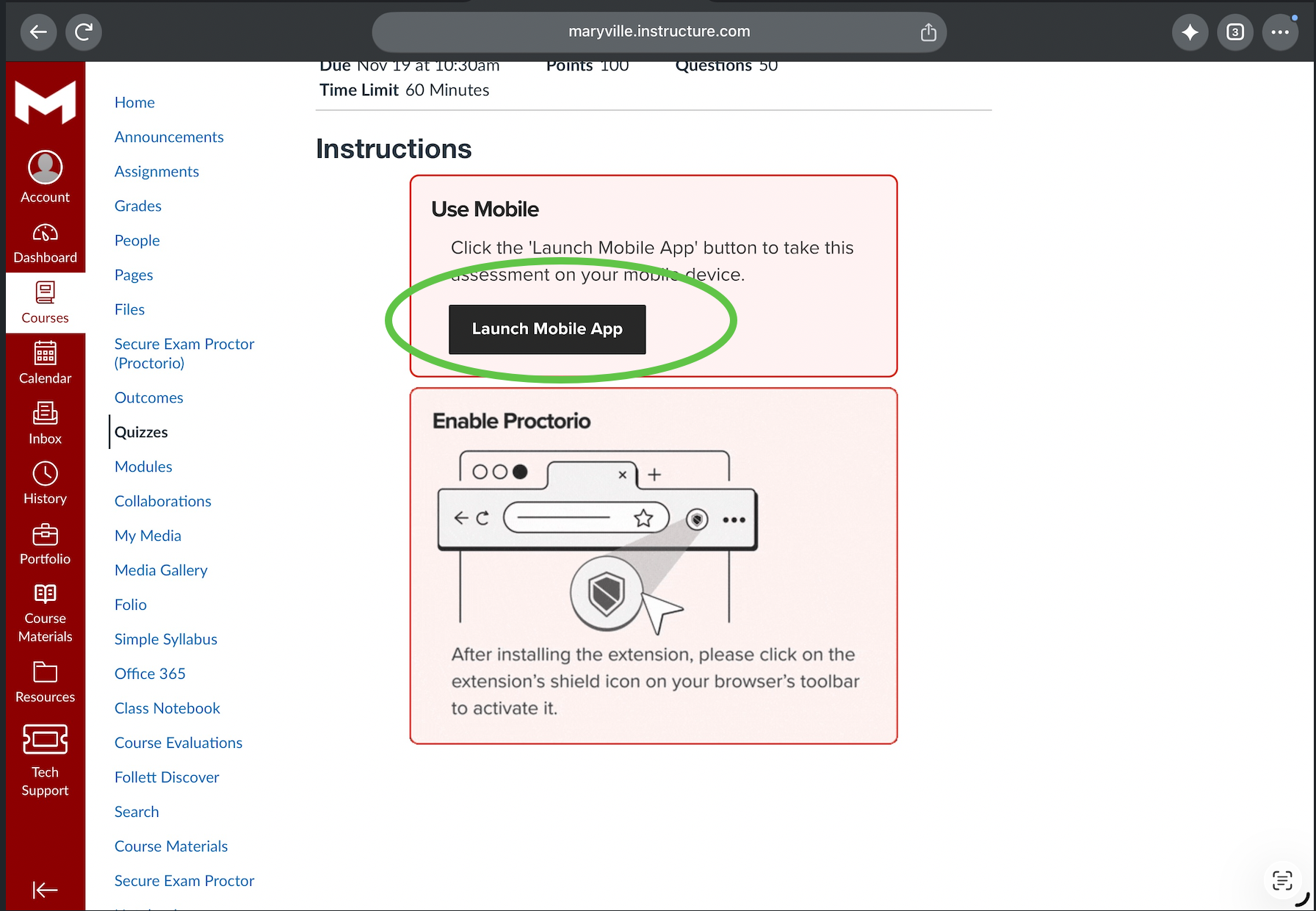
- First time only: this installs the app. Once it's installed, return to the quiz page and tap Launch Mobile App again to open it.
-
The app asks for device Permissions (camera, microphone, and similar) it needs to run the exam. Tap Review permissions and allow what's requested — you can adjust them again after you submit.
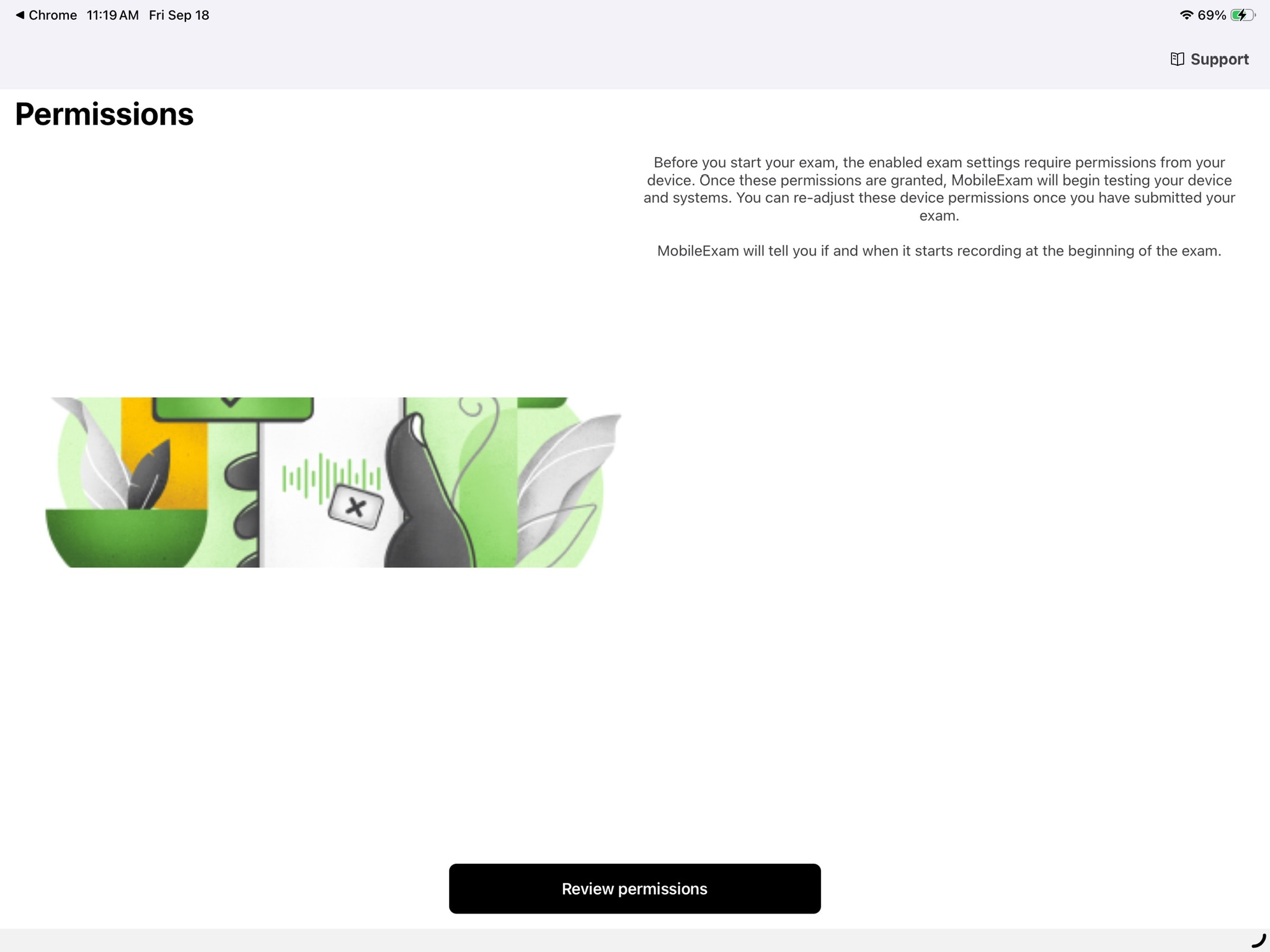
-
Read the Exam Agreement and tap I accept, begin exam now.
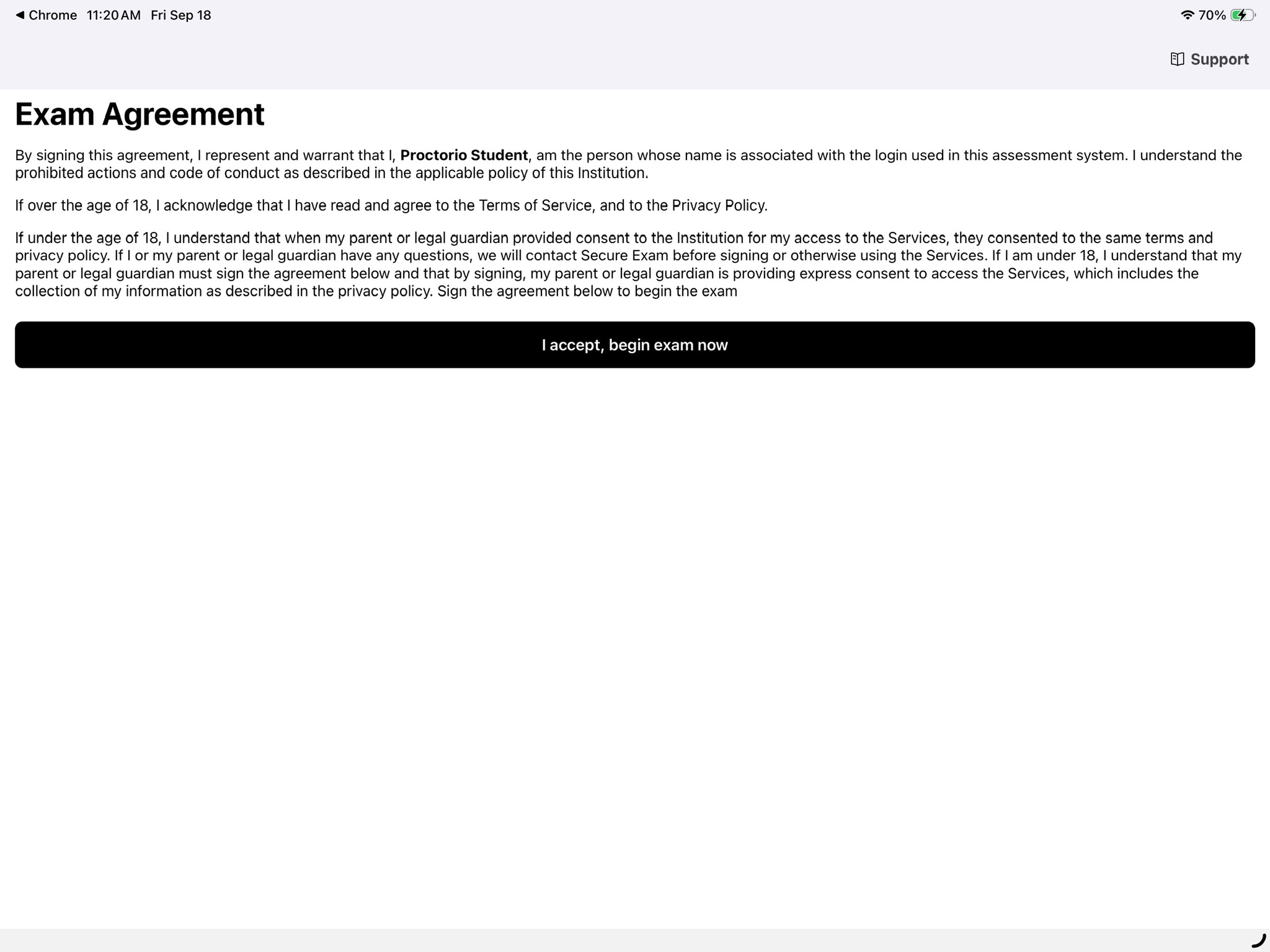
-
Confirm App Self-Lock when the system prompt appears. Tap Yes to allow Assessment Mode. This locks your device to the exam app until you submit; tapping No will not let you continue.
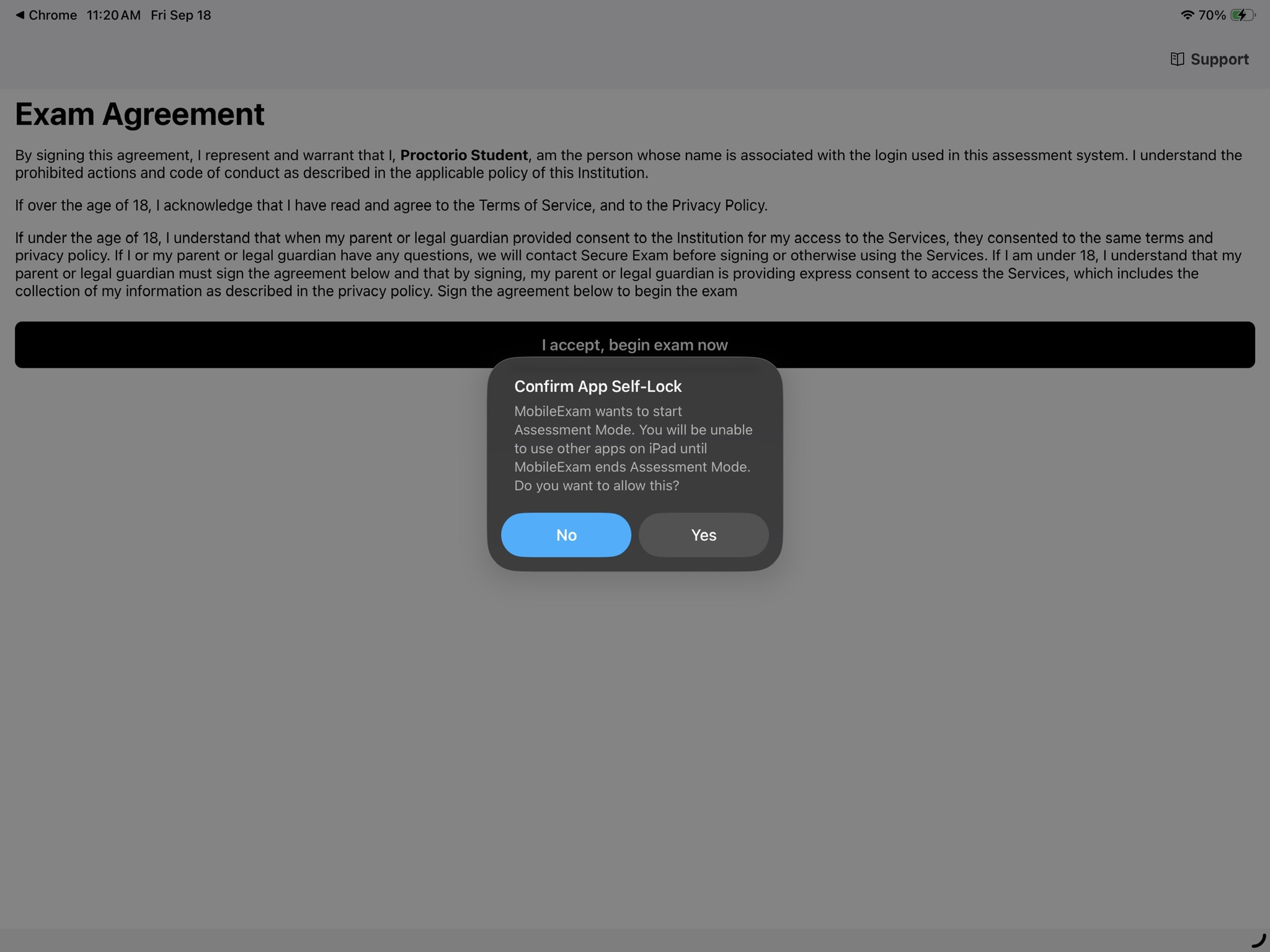
- Once setup finishes, the exam loads inside the app and your session begins.
- Keep the Proctorio app in the foreground for the entire exam. Switching to another app or your device's home screen may end your session early.
During the Exam
- Don't switch apps, take calls, or let notifications interrupt the app. Mobile lockdown behaves differently than the desktop Chrome extension, and leaving the app can end your session.
- If the app freezes or your connection drops, don't panic and don't restart the exam yourself. See the next section.
If Something Goes Wrong
For anything you can't resolve yourself, reach out to Proctorio first:
- Live Chat
- Email: support@proctorio.com
If you still need assistance after contacting Proctorio, put in a help ticket with DLX Launch Pad.
Make sure to loop in your instructor about the specific exam so they know what happened before the deadline passes.
| Issue | What to try |
|---|---|
| App won't open the exam | Confirm your instructor has enabled mobile testing for this specific quiz. Not every Proctorio exam allows mobile devices. Make sure Google Chrome is up to date. |
| Camera/microphone permission denied | Go to your device Settings > Proctorio and turn both permissions on, then reopen the app. |
| App freezes or crashes mid-exam | Take a screenshot if you can, note the time, and contact your instructor immediately — don't just restart, since that can look like a new attempt. |
| Poor connection / dropped Wi-Fi | Move closer to your router or switch to cellular data if allowed, then relaunch the app. |
| Exam says mobile isn't supported for this course | Contact your instructor. Mobile access has to be turned on for the individual exam. |